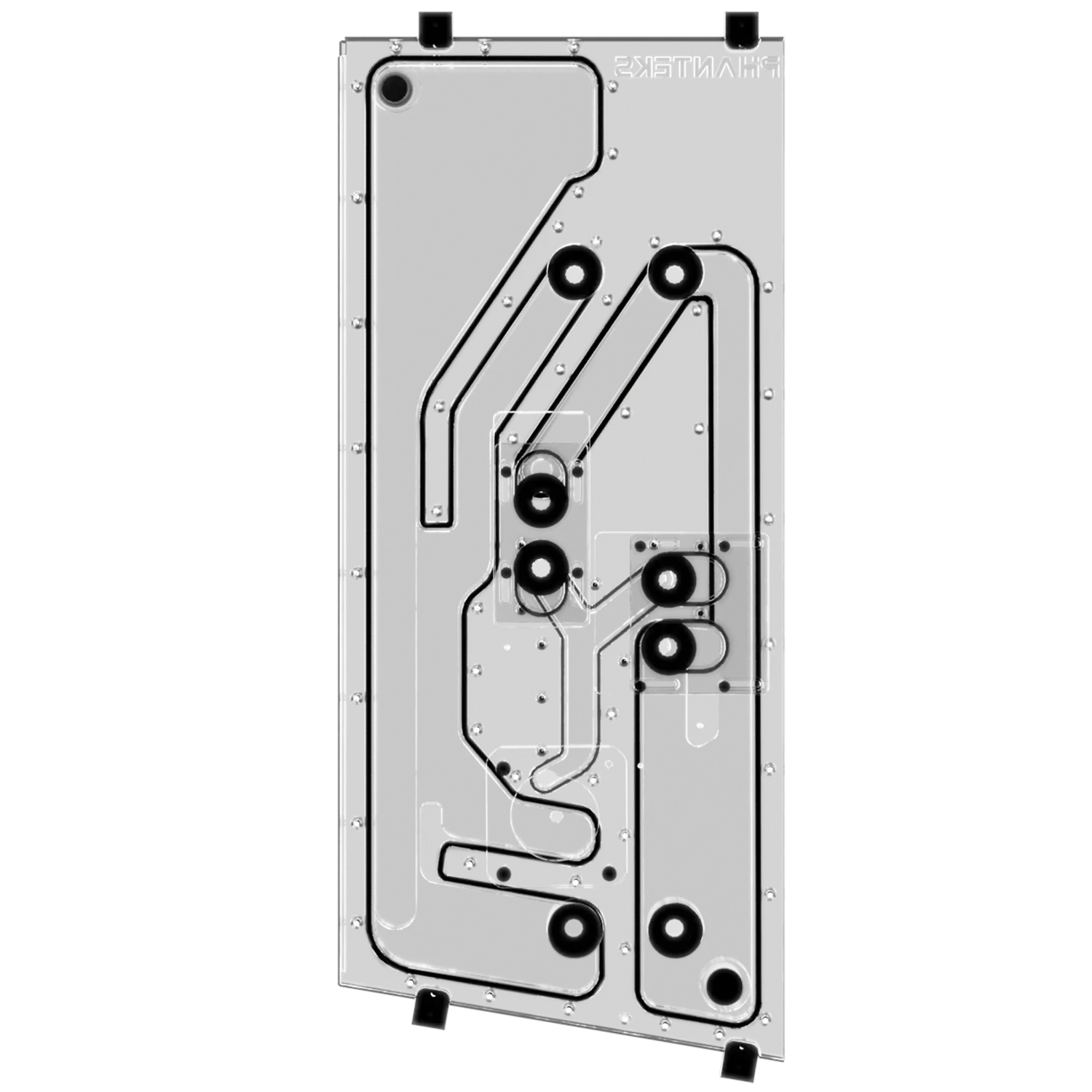
NV7-Distro
Distro Plate for NV7
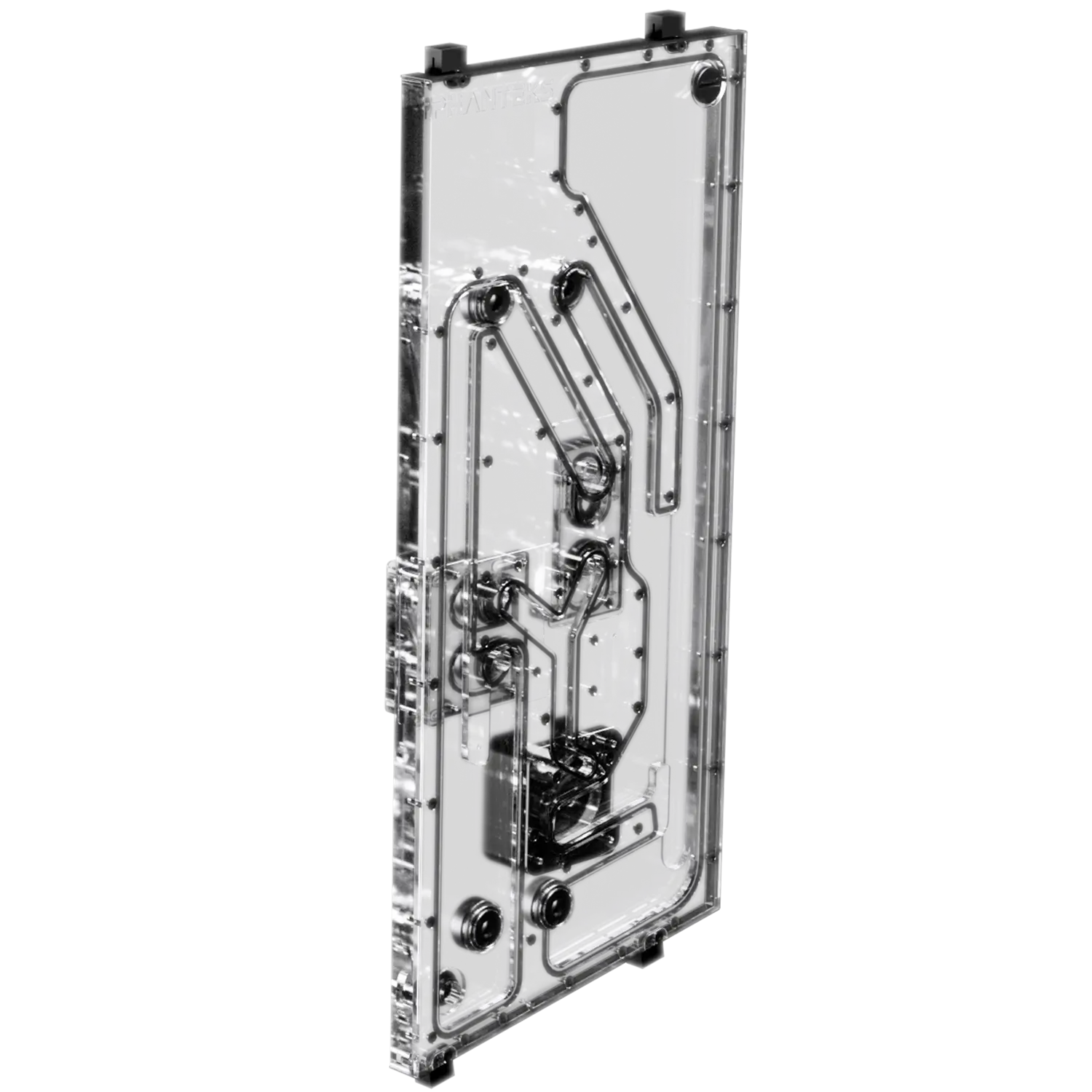
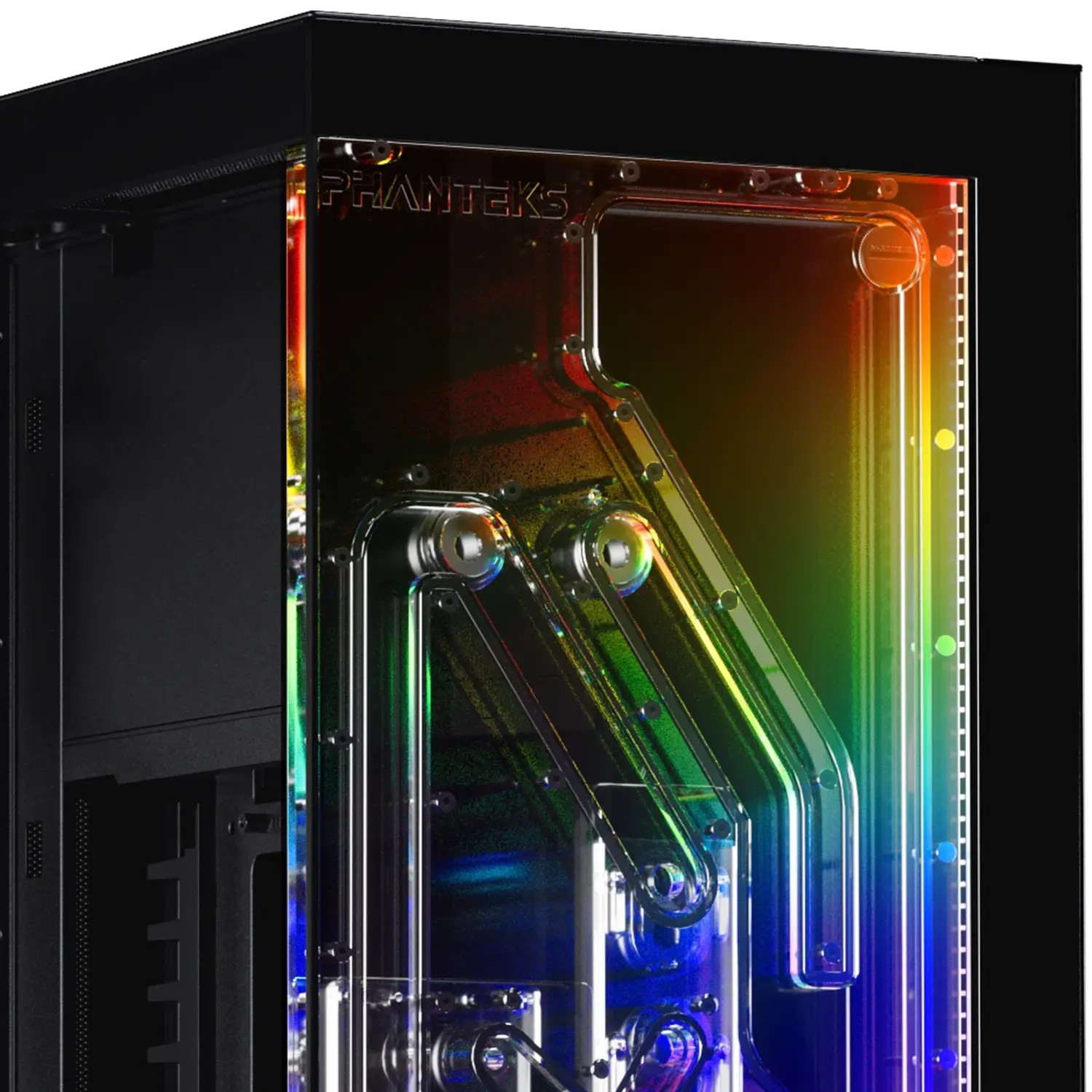
Designed exclusively for the Phanteks NV7 chassis, the Glacier EZ-Fit NV7-DISTRO is a custom water-cooling distribution plate that redefines elegance and efficiency for PC cooling. Built with the best materials and integrated 16 mm EZ-Fit push-in fittings, it transforms your build into a showcase of engineering and art.
Configurations


Specifications
General
Model No.
PH-GEF_DIS-NV7
UPC Code
886523703433
Product Type
Distro plate
Color
N/A
Chassis Support
Phanteks NV7
Materials
Cast acrylic | Aluminum mounting hooks | Brass fitting | ABS fitting inserts | EPDM-NBR O-rings
Technical Details
Dimensions
Width x Height x Depth
212 x 488.24 x 40.45 mm | 8.34 x 19.22 x 1.59 in
Pump Compatibility
DDC
Not included
Liquid Capacity
277 ml
Inlet Ports
4x M24
Outlet Ports
4x M24
Fill Port
1x G¼ brass stop fitting Pre-installed
Plugs
2x M24 acrylic plug fitting Pre-installed
Fittings
8x M24 EZ-Fit 16 mm fittings Pre-installed
Hard Tube Support
16 ± 0.1 mm OD | HI-PMMA | PMMA | Acrylic | PETG | Glass
Soft Tube Support
16 ± 0.1 mm OD | H10 ± 0.1 mm ID | PVC
LED Number
39
LED Max. Rated Current
0.96A
Extra
Scope of Delivery
1x NV7 distro plate
Accessory Box
3x Fitting inserts
4x Mounting hooks
1x D-RGB LED cable Pre-Installed
1x 2.5 mm Hex key
1x 2 mm Hex key
Screws
4x M3x16 mm Mounting screws
4x M4x25 mm Pump screws
Support
FAQ
Digital-RGB means that each LED chip can be controlled individually, allowing for multiple colors and effects in a single D-RGB LED strip. While regular RGB LED strips can only show the same color on each LED chip per strip at a time. However, not every Digital-RGB (Addressable) product is the same.
You don’t need the Nexlinq app directly for housing your PC in the Matrix-supported cases. However, the Nexlinq app is required to set up and customize the Matrix display (system stats, animations, lighting, and custom visuals). Without the app, the Matrix screen cannot be configured and will show the text ‘Matrix 600’ or ‘Matrix 900’ depending on the Matrix display size.
Are plug-and-play. No software is needed, yet it is compatible with software control through MSI or ASUS compatible motherboards if desired. Have custom developed color patterns. We believe D-RGB lighting can be stylish when having the right color/pattern settings, which is why the Phanteks D-RGB controller is pre-installed with custom selected color modes and patterns.
Have 30 LED chips. This is a lot! Having 30 LEDs per product instead of just 8 or 12 creates a much more beautiful color gradient and higher quality lighting. This also means more color tints can be displayed simultaneously in one strip.
Digital-RGB and RGB have a different connector. Digital-RGB uses a 3-pin connector while RGB uses a 4-pin connector. Technical explanation: Digital-RGB uses 5 Volts while RGB uses 12 Volts. Connecting Digital-RGB products and RGB products would cause damage.
Digital-RGB from Phanteks is compatible with Asus Addressable-equipped motherboards and MSI Mystic Light Rainbow-equipped motherboards. Check with the Motherboard specifications if your motherboard has a ‘AURA Addressable Header’ or a ‘Mystic Light Sync Rainbow header’ with 3 pins.
Each D-RGB product uses 1 Ampere. Check the power output with your motherboards specifications to determine how many D-RGB products can be powered by your mainboards. Currently mainboards support 3 Amperes.
The Phanteks D-RGB controller can support up to 7 D-RGB products when using the remote. If the D-RGB controller is connected to your motherboard a total of 9 D-RGB can be connected to the controller. A maximum of 4 D-RGB products can be connected to a single output port on the controller.
Most of the D-RGB products and compatible mainboards include a mainboard adapter. Simply connect this mainboard adapter to the Addressable or Rainbow port on your mainboard and the Phanteks D-RGB products. D-RGB products from Phanteks can be daisy-chained so you only need one port on your motherboard. Most mainboards also include this motherboard adapter cable.
You can install as many D-RGB controllers as you would like. However they do not connect to each other. Each controller will work, and need to be controlled, individually.
Press and hold the ‘Mode’ for 2 seconds until the LED’s turn off. When using software control please consult with the motherboard manufacturer.


